

Get your API keys
This guide covers the minimum setup required to make your first API request. For production usage, permissions, and security best practices, see Authentication.
This guide walks you through the essential setup steps needed to prepare your environment for making successful API calls to the UpRock API.
Prerequisites
Before you begin building with UpRock, ensure you have the following prerequisites in place.
- Uprock account: sign up for a free account at uprock.ai
- Active plan: to access the API, you need an active plan or trial credits on Uprock.
- Permission: You need permissions to create API keys in your organization
- Development environment: A code editor (e.g., VS Code, Sublime Text) and access to a command line terminal.
Get your API Key
To retrieve your API key, follow these steps:
- Navigate to the official UpRock website.
- Sign in with your email, and you will be sent a six-digit code to confirm your account
- Input the six-digit code in the provided input fields, and you will be redirected to your dashboard
- Navigate to the API section
- Click the button labeled Create new key
- Create a name for your API key.
- Click Create key and your API will be generated within a few seconds.
- Copy your API key immediately and store it safely.
- Select the required permissions. For basic operations, make sure the
crawl:readpermission is enabled.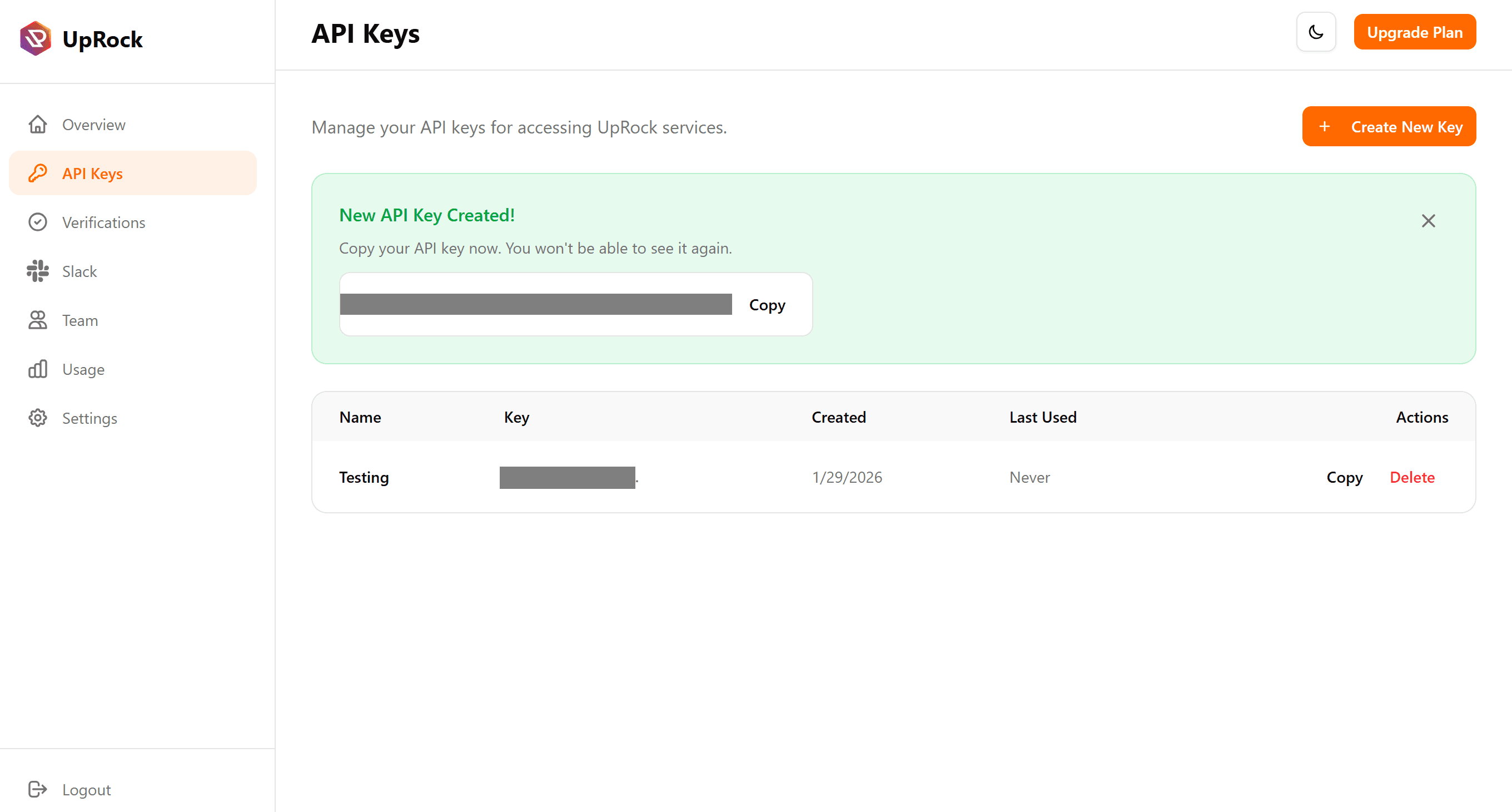
Security Warning
Your API key is a secret credential. Never commit it to version control or share it publicly. The next section will show you how to securely store them.
Store and Configure Your Credentials
To keep your API key secure, store it in environment variables rather than hardcoding it in your application code.
There are two ways to store your API keys, choose the method that suits your development process.
Method 1: Using a .env File
This method is suitable for local development purposes and it's recommended if you are just getting started.
-
Create a
.envfile in your project's root directory.UPROCK_API_KEY=your-api-key-here # Optional — defaults to https://edge.uprock.com UPROCK_BASE_URL=https://edge.uprock.com -
Add
.envto your.gitignoreto prevent committing your API key to version control..env .env.local *.env -
On macOS or Linux, run the following command in your terminal from the project root to restrict access to the
.envfile:chmod 600 .env
Method 2: Using System Environment Variables
This method is recommended for production and CI/CD environments, where the same system is used by multiple users or services.
Add the variable to your shell configuration file:
# Add to ~/.bashrc or ~/.bash_profile
echo 'export UPROCK_API_KEY="your-api-key-here"' >> ~/.bashrc
source ~/.bashrc  # Reload configuration
# Add to ~/.zshrc
echo 'export UPROCK_API_KEY="your-api-key-here"' >> ~/.zshrc
source ~/.zshrc # Reload configurationset -Ux UPROCK_API_KEY "your-api-key-here"# Set for all future sessions
[System.Environment]::SetEnvironmentVariable('UPROCK_API_KEY','your-api-key-here','User')
# Set for current session only
$env:UPROCK_API_KEY = "your-api-key-here"After using SetEnvironmentVariable, close and reopen your terminal for changes to take effect.
setx UPROCK_API_KEY "your-api-key-here"The setx command does not affect the current terminal session. Open a new
terminal after running this command.
Corporate Proxy Configuration
If you're working behind a corporate proxy, configure these additional environment variables into your system:
export HTTPS_PROXY="https://user:pass@proxy.example.com:8443"
export NO_PROXY="localhost,127.0.0.1"
$env:HTTPS_PROXY = "https://user:pass@proxy.example.com:8443"
$env:NO_PROXY = "localhost,127.0.0.1"Verify your API key and connectivity
Now that you have generated and configured your API key, verify with a simple health check request, that it is set up correctly and that your system can successfully authenticate with the UpRock API.
curl -X POST https://edge.uprock.com/crawl/v1/new
-H "Authorization: Bearer <API KEY> "
-H "Content-Type: application/json"
-d '{"url": "https://example.com"}'
$headers = @{
Authorization = "Bearer <API KEY>"
"Content-Type" = "application/json"
}
$body = '{"url": "https://example.com"}'
$response = Invoke-WebRequest -Method POST -Headers $headers -Body $body -Uri "https://edge.uprock.com/crawl/v1/new"
$response.ContentExpected Output
{
  "job_id": "f2bf9f8b-10ee-4c61-9633-4eacc3XXXac8",
  "url": "https://example.com",
  "method": "GET",
  "status": "pending",
  "submitted_at": "2026-02-17T18:00:00Z",
  "timeout_sec": 30
}
Common failure codes:
401- Invalid or missing API key403- Inactive plan or insufficient permissions404- Incorrect base URL
Getting Help
If you encounter issues during setup, send an email to support@uprock.com